New Tool: Image to Base64 Markdown Converter — Embed Images Directly in Your Docs
MerchMindAI's new free tool is live! Convert images to Base64 Markdown syntax, Data URLs, or plain Base64 — all processed locally in your browser. No uploads, no servers, just self-contained documents.
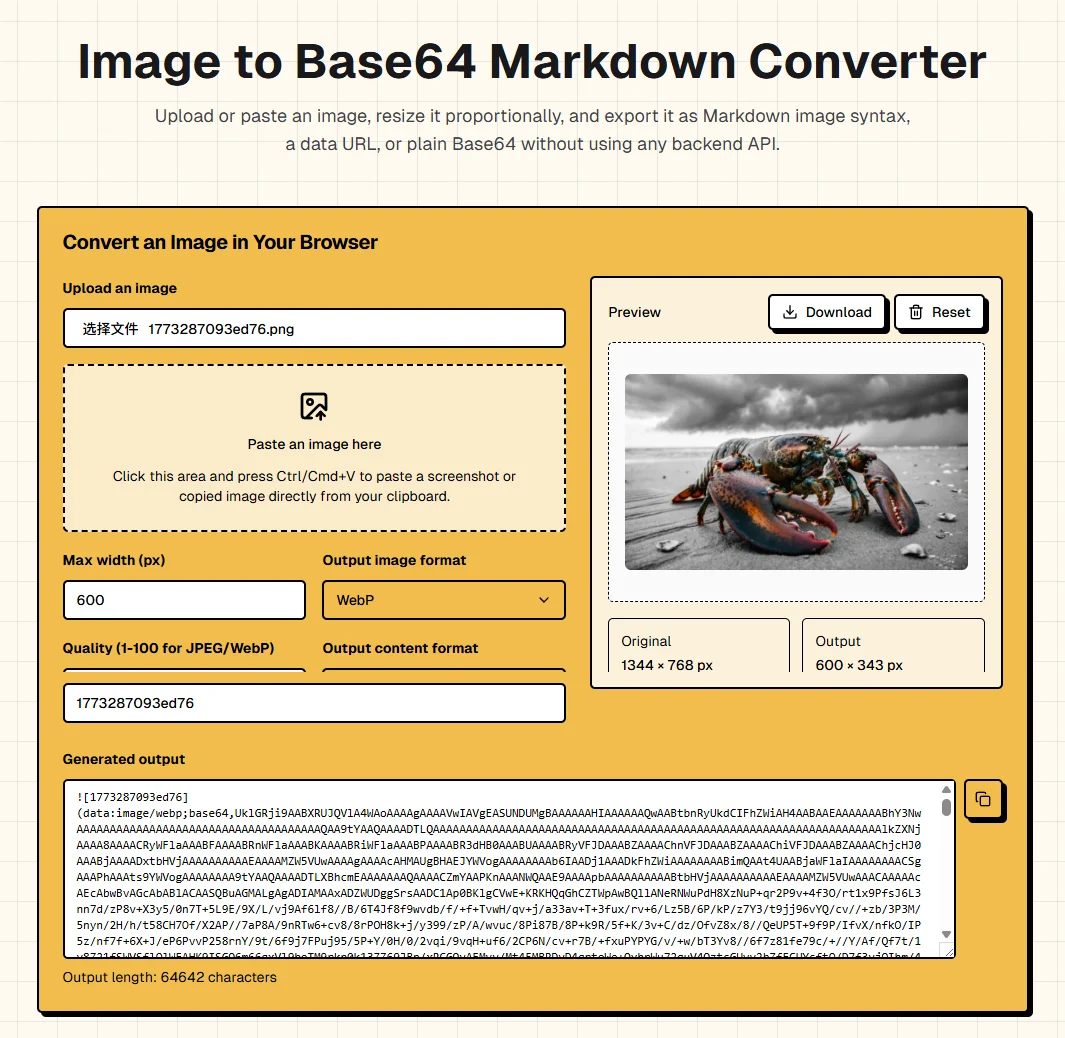
We just shipped a small but handy tool at MerchMindAI — the Image to Base64 Markdown Converter. It tackles the eternal headache of broken image links, privacy-sensitive screenshots, and the friction of sharing Markdown files that depend on a folder full of images. Everything runs locally in your browser. No uploads, no accounts, completely free.
Why Markdown Image Hosting Is a Pain
Markdown handles images through references — a URL or file path pointing somewhere else. The actual image data lives outside the document. Every screenshot, diagram, or icon in your doc needs an external home: an image host, a CDN, a GitHub issue attachment, or a local folder.
This setup works most of the time, until it doesn't:
Pain Point #1: Broken Links Are a Matter of Time
Image hosts shut down. CDN domains change. Repos get migrated. Even a network hiccup can leave your docs littered with missing-image placeholders. For long-lived technical documentation and open-source READMEs, this isn't an "if" — it's a "when."
Pain Point #2: Sensitive Screenshots Shouldn't Leave Your Machine
Screenshots of internal dashboards, debug output, or unreleased features contain data that shouldn't be handed to a third-party image host. Even with private repos, the raw image files still sit on someone else's server.
Pain Point #3: Sharing Is Harder Than It Should Be
Want to share a note with five embedded screenshots? You need to make sure the recipient can access every image link — or zip up the whole folder and send it along. A single Markdown file turns into a mini file-transfer operation.
Pain Point #4: Small Images, Big Management Overhead
Icons, badges, diagrams, UI fragments — these tiny images add up. Naming them, storing them, tracking which doc references which file becomes a steady drip of busywork.
How We Solve It: Write Images Directly Into Your Docs
Base64 encoding turns binary image data into a text string that lives inside your .md file. The benefits are immediate:
- Self-contained documents: the image is part of the file — nothing can break
- Zero server dependency: no uploads, no CDN, no image host to trust
- True single-file sharing: one
.mdfile carries everything - No management overhead for small images: paste and move on
The idea is simple, but hand-crafting Base64 Markdown is tedious — convert the image, format the string, wrap it in Markdown syntax, deal with format selection and resizing. Every time, you're either opening a terminal or bouncing between online tools.
So we built the Image to Base64 Markdown Converter to collapse those steps into a straight line: upload, tweak, copy, done.
What the Tool Does
The core workflow is three steps: upload an image → adjust settings → copy the result. Here are the details worth knowing:
100% browser-side processing. Your images never leave your computer. All conversion happens locally in the browser — no backend server, no upload queue, no privacy concerns.
Proportional scaling. Your original screenshot might be 2K resolution, but your README only needs a 600px-wide embed. Set a maximum width and the tool scales the image down proportionally, drastically reducing the Base64 string length.
Three output formats for different needs:
| Output Format | What You Get | Best For |
|---|---|---|
| Markdown Image Syntax |  | Drop directly into any .md file |
| Data URL | data:image/png;base64,... | HTML embeds or flexible control |
| Plain Base64 | iVBORw0KGgo... | Custom formatting or other uses |
Multiple image formats. Choose between PNG, JPEG, and WebP output. WebP gives you the smallest file size at comparable quality. PNG preserves transparency for screenshots. JPEG works well for photographic content.
Use Cases
This tool isn't for everything, but it shines in these scenarios:
README files and open-source docs. Embed your project logo, architecture diagram, or usage screenshots directly in the README. No more broken images when a CDN changes or an image host disappears. The repo stays fully self-contained — clone it and everything renders.
Technical notes and internal documentation. Debug screenshots, config pages, API response captures — embed them inline and stop worrying about where to store the raw images.
Markdown CVs and portfolios. A single .md resume with your photo, project screenshots, and a QR code. Send it as one file and it renders complete everywhere.
Small illustrations in blog posts. Icons, dividers, small diagrams — these decorative images are perfect candidates for Base64 embedding, cutting dependency on third-party image hosts.
Team knowledge bases. Confluence, Notion, Obsidian, and similar tools generally support Base64 images. Embed screenshots directly into pages, and your exports and backups won't lose image data.
What to Keep in Mind
Base64 embedding has trade-offs. Here's what to watch for:
Not for large images. A 2MB photo becomes roughly a 2.6MB Base64 string, bloating your Markdown file and potentially slowing down your editor. This tool is designed for small screenshots, icons, and UI fragments — images measured in kilobytes, not megabytes.
Platform compatibility varies. Some Markdown renderers and forum systems cap Data URL length or strip them entirely. GitHub, VS Code, and Obsidian handle them well, but less common platforms may not. Test before committing to Base64 in a new environment.
Scaling is your best lever for file size. A screenshot at 1920px wide generates a Base64 string several times larger than the same image scaled to 600px. Set a reasonable max width to balance visual quality with file size.
No browser caching advantage. External image URLs benefit from browser caching — load once, render fast on subsequent visits. Base64 images parse with the document every time. For local files and reasonably sized documents, the difference is imperceptible.
Summary
Markdown's image hosting problem has been around as long as Markdown itself — unreliable hosts, privacy risks, scattered management. Base64 embedding offers a lightweight alternative that's perfect for the "small but important" images: screenshots, icons, diagrams, and UI fragments.
The Image to Base64 Markdown Converter is our take on solving this: paste an image, dial in your settings, copy the result. Everything happens in your browser — no uploads, no accounts, free to use.
Give it a try, and let us know what you think. We'll keep iterating with more useful features.
Related Resources
Source Notice
This article is published by merchmindai.net. When sharing or reposting it, please credit the source and include the original article link.
Original article:https://merchmindai.net/blog/en/post/image-to-base64-markdown-converter