Does Your Shopify AI Support Sound Like a Temp Who Never Saw Your Store? Six Steps to Fix It
Shopify AI customer service giving vague answers, outdated policies, or promises it can't keep? Here are six fixes for HeiChat product learning, knowledge base, reply style, and human handoff.

Many Shopify merchants have the same moment when they open the AI customer service on their own store: they ask about the return policy and get back a line from the homepage banner; they ask about the fabric of a specific sweater and get "please check the product page."
The problem isn't that the AI is dumb. It's that nobody told it who this store is, what it sells, and how it should handle different kinds of questions.
In this article, "AI customer service" means a conversational bot installed on a Shopify store, such as HeiChat. It runs on a large language model, can read product data and policy documents, and replies in the customer's language. It is not the same as the early chatbots built on "keyword matching plus canned scripts," but it shares one trait with them: answer quality depends heavily on the information the merchant provides.
Drawing on the best practices in HeiChat's official documentation, this article follows the order of "common failure scenarios → root cause → the setting that fixes it → a template you can copy," so you can build a more professional Shopify AI customer service setup step by step.
1. First, Six Ways It Goes Wrong
If your store already has AI customer service installed, these conversations will probably look familiar.
Scenario one: the generic answer
Customer: "I'm buying this as a gift. Can you ship it in plain packaging?" AI support: "We are committed to providing every customer with high-quality products and service. Thank you for your support."
Scenario two: the outdated answer
Customer: "Is your return window still 30 days, no questions asked?" AI support: "Yes. Under our return policy, you can request a return within 30 days."
(In reality, the merchant changed the policy to 14 days last month. The knowledge base still holds the old version.)
Scenario three: vague on product details
Customer: "Will this wool sweater irritate my skin? Mine is sensitive." AI support: "For material information, please check the product detail page."
Scenario four: clinging on when it should hand off to a human
Customer: "The mug I received is broken. I want a refund." AI support: "We're very sorry for the inconvenience! We will process your refund within 3 business days."
(Refunds require human review. The AI has no such permission.)
Scenario five: stiff replies for multilingual customers
Customer (in Japanese): "海外発送はできますか?" AI support: "Yes, we ship internationally."
Scenario six: a round of edits with no idea whether things improved
The merchant spent an afternoon adding FAQs, but nothing told them which questions were still being answered wrong, or whether the edits had taken effect.
These six scenarios map to six different problems. Let's take them one at a time.
2. Pitfall One: Unclear Business Context
Symptoms
The AI gets awkward when it mentions the store, or avoids the brand name entirely and keeps saying "our store."
Root cause
It doesn't know what this store is called, what it sells, or who it serves.
The setting that fixes it
In Shopify Admin > Apps > HeiChat > Setup > Basic Settings, fill in at least three fields:
- Store Name: use the official brand name, not just the Shopify domain prefix;
- Store Introduction: spell out what you sell, to whom, which regions you ship to, and any policy points that stand out;
- Customer Service Supervisor's Email: use an inbox a real person actually checks.
Template: how to write the Store Introduction
The official documentation asks for "short paragraphs or bullet points, not just marketing slogans." This structure is ready to use:
We are [brand name], specializing in [core category], with prices roughly in the [X–Y] range.
Our main customers are [customer description].
We currently ship to [countries/regions]. Orders usually go out within [N] business days,
standard shipping takes about [N] days, and [expedited option] is available.
Return policy: [core rule, e.g. "returns accepted within 14 days of delivery with tags intact"].
Cases where returns are not accepted: [list, e.g. "custom items, underwear, opened skincare"].
Contact a human agent for: [list, e.g. "refund exceptions, damaged orders, wholesale inquiries"].
The value of this material is that it gives the AI concrete rules to cite instead of a brand blurb. Sentences like "we are committed to high-quality products" do nothing for customer service.
3. Pitfall Two: No Boundaries on What It Says
Symptoms
Replies either read like a policy document or come stuffed with emoji on every line. For sensitive topics like refunds and complaints, the tone stays as cheerful as if it were chatting about a new drop.
Root cause
Tone, length, language, and boundaries were never configured. The defaults don't necessarily match the store's brand voice or the real customer service scenarios.
The setting that fixes it
Go to Setup > Advanced Settings > AI Response (you can also get there from Basic Settings > Customize Your Bot > Set AI Style). A few trade-offs are worth noting:
- AI Output Mode: Streaming is usually recommended, since customers see the reply appear progressively and wait less;
- Reply Style: serious brands should pick Serious & Professional, while consumer brands can go lighter; be careful with humor in refund and complaint scenarios;
- Emoji Usage: for high-ticket or formal brands, Prohibited or Minimal is advisable;
- Response Length: start with Standard for general use, Concise works for FAQs or mobile, and Detailed suits setup instructions and complex policies;
- Reply Language: use Automatic for multilingual customers, or Fixed Language if all replies must use one language;
- Custom Instructions: define the brand tone, what must never be promised, and how to handle uncertainty.
Template: the four categories of prohibition in Custom Instructions
What makes AI customer service professional is often not what it can say, but what it is not allowed to say. The block below can go straight into Custom Instructions:
[Tone] Stay patient and friendly. Avoid overly technical wording.
When a customer complains or is upset, empathize first, then offer a solution.

[On uncertainty] When you are unsure about stock, shipping dates, or exact arrival times,
do not speculate or make specific commitments. Explain that it needs to be confirmed.

[On commitments] Do not promise specific refund amounts, timelines for funds arriving,
or compensation packages. Refund exceptions and policy waivers must always be routed to a human agent.

[On follow-up questions] When information is missing, ask the single most important
clarifying question first. Do not fire off several questions at once.

[On sensitive topics] For order privacy, payment disputes, or legal and medical advice,
do not offer judgment. Hand off to a human agent immediately.
One point deserves special attention: the official documentation explicitly warns that rules used to detect knowledge gaps belong in Gap Detection, not in Custom Instructions. Mixing the two kinds of rules can undermine the effectiveness of both settings.
4. Pitfall Three: Incomplete Product Knowledge
Symptoms
Customers ask "which size fits me," "is this compatible with a certain device," or "what colors are there," and the AI can't give a concrete answer.
Root cause
Product questions can't be solved by hand-written FAQs alone — a store may have hundreds of SKUs, and product attributes keep changing.
The setting that fixes it
In Setup > Learned Products, confirm that product learning has finished and that your key products are in scope. HeiChat reads Shopify product data and syncs it automatically, so routine small edits usually need no manual action.
But one detail is easy to overlook: if the store launches products in bulk, or you change product descriptions, variants, materials, sizes, or compatibility all at once, run a manual Refresh on the Learned Products page to make sure the latest information is available for replies and recommendations.
Another common misconception: when product attributes are missing, don't patch them with the Knowledge Base. If even the Shopify product record has no "material" field, the right move is to complete the product data first and wait for the sync, not to duplicate a product description in the knowledge base — that only creates two data sources that contradict each other.
5. Pitfall Four: Outdated Business Policies
Symptoms
On shipping, returns, after-sales, and membership rules, the AI answers vaguely or cites rules that no longer apply.
Root cause
Business knowledge beyond products never made it into its knowledge base.
The setting that fixes it
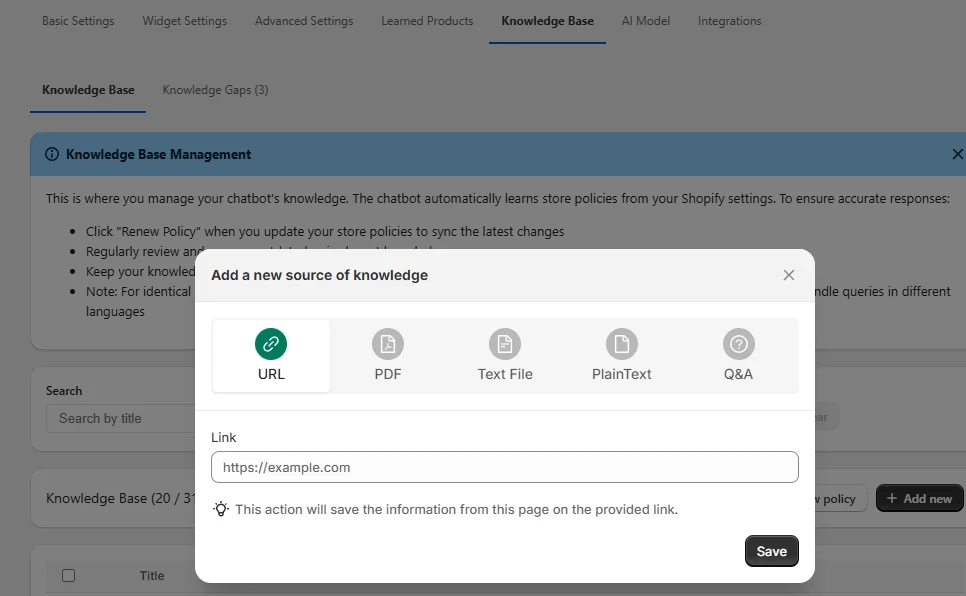
Maintain this in Setup > Knowledge > Knowledge Base. It and Learned Products are two separate modules:
- Product information (title, description, variants, price, inventory) is read automatically by Learned Products;
- Business knowledge (shipping, returns, usage instructions, after-sales flows) is maintained manually in the Knowledge Base.
Available content types include URL, PDF, TEXT FILE, PLAIN TEXT, and Q&A. Two rules of thumb when choosing:
- Keep each entry to a single topic. Don't pile several unrelated policies into one long document;
- Attach multiple phrasings to one answer. For shipping time, for example, you can include "How long does shipping take?", "When will my order arrive?", and "What is the delivery time?" so that a different wording still maps to the same intent.
The most common trap: the knowledge base does not update itself
Content in the Knowledge Base is a snapshot taken at the time it was added; it does not sync automatically when the source page or file changes. So:
- When shipping, refund, privacy, or terms policies change in Shopify, click Renew Policy to resync;
- For limited-time promotions, campaign rules, and temporary policies, set an expiration date — otherwise the AI keeps quoting the old offer after the campaign ends;
- When updating content, edit the original entry rather than adding a new one. Two contradictory rules living side by side make the AI's answers unpredictable.
This is exactly what caused the "outdated answer" scenario at the start.
6. Pitfall Five: Nobody Notices It's Answering Wrong
Symptoms
The merchant has no idea where the AI performs badly and only finds out when a customer complains.
Root cause
There's no layer of after-the-fact self-checking.
The setting that fixes it
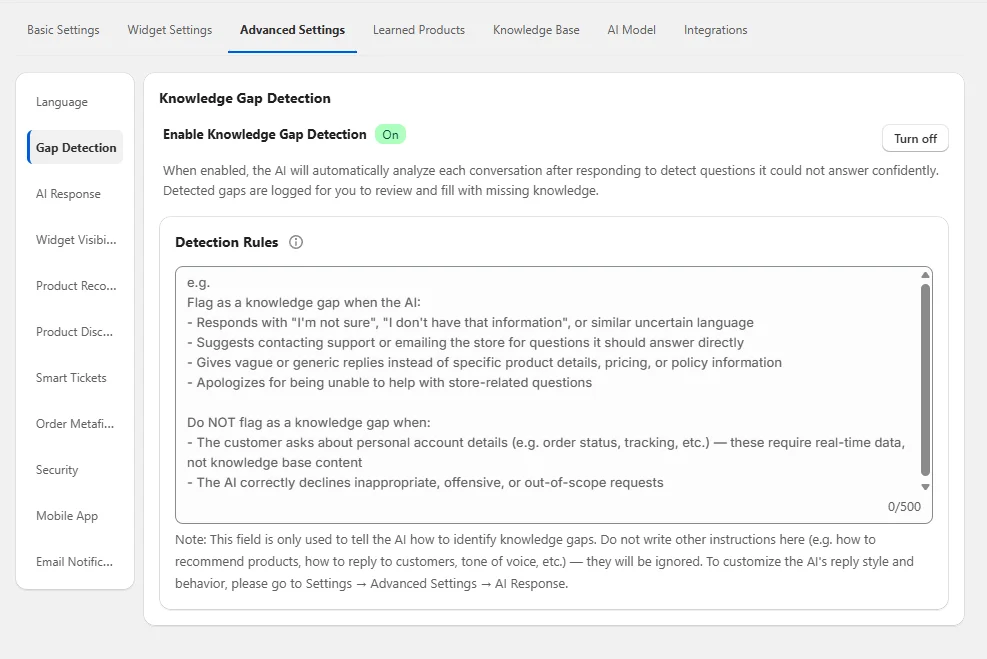 Turn on knowledge gap detection in
 Setup > Advanced Settings > Gap Detection. Its job is to analyze, after a conversation ends, whether that reply exposed a knowledge gap. It does not change what the customer saw.
The suggested rules in the documentation include: the reply contains "I'm not sure" or "I don't have that information"; the answer is generic and not actionable; it repeatedly suggests contacting support for a question that should have a direct answer; it asks the customer to re-describe the problem several times; it fails to cover store-specific processes.
At the same time, spell out what should not be counted as a gap, or you'll generate a flood of false positives:
- Questions that need real-time account data, such as order status and tracking;
- Requests the AI correctly declined because they fall outside its scope;
- Refund exceptions or privacy matters that must go through human review.
Closing the loop: gaps become new knowledge
Gaps are collected in Setup > Knowledge > Knowledge Gaps. The recommended order of handling is:
- Sort by Hits and start with the most frequent;
- Open the Question and read the full customer question, AI reply, and AI Insight;
- Click View Conversation to see the context, so you don't draw conclusions from a single line;
- Decide whether the cause is missing knowledge, outdated knowledge, incomplete product data, or a case that should have gone to a human anyway;
- Click Add Knowledge to create the matching entry;
- Test it on the storefront with the original question and a few rephrasings;
- Once it's clearly improved, click Mark as Resolved; if it was a false positive, use Ignore.
High-Hits gaps usually represent core problems that many customers run into. Fixing the high-frequency items first — shipping, returns, sizing, compatibility, and payment — is worth more than trying to clear a long tail of low-frequency edge cases from day one.
In-conversation corrections and their limits
While reviewing conversations day to day, if you spot an inaccurate reply, you can pick Correct this message on the corresponding AI message in Conversations > All Conversations, restate the customer's question, fill in the standard answer, or link the specific product that should have been recommended.
One caveat has to be stated clearly: a Correction is not a hard rule, and it does not absolutely override every future reply. It is essentially a fast entry point for adding human corrections into the knowledge system. HeiChat may reference it for similar questions, but the final reply is still generated from the current conversation, the existing knowledge base, and other available information.
So the sensible way to use it is: Corrections stop the bleeding quickly, while policies that should hold long term still need to be written up as proper Knowledge Base entries. After correcting, test again with a few different phrasings.
7. Pitfall Six: Forcing an Answer When It Should Hand Off
Let the AI know when a human should take over
Some questions should never be answered by the AI in the first place. Scenarios listed in the documentation include: refund exceptions or policy waivers, damaged or lost orders, account privacy and payment disputes, stock or delivery times the AI cannot confirm, and high-value customers with complex customization needs.
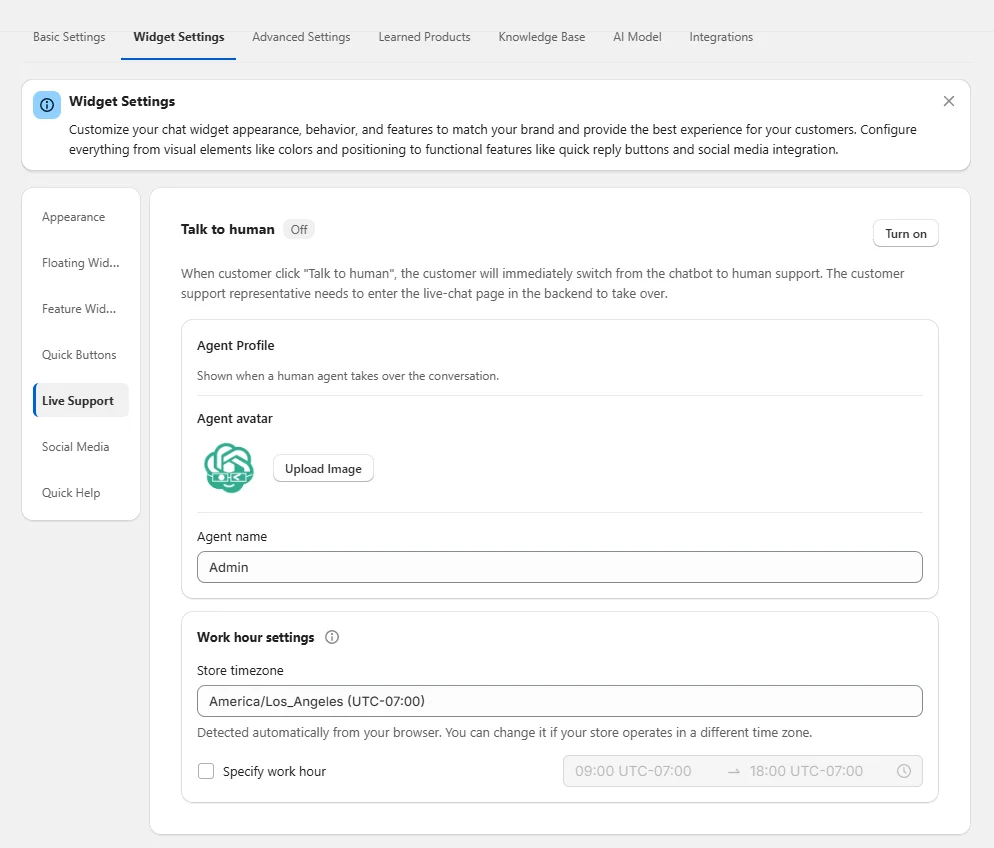
The relevant settings are in Setup > Widget Settings > Live Support, where you set the button text, support hours, holiday schedule, and notification email. If you need tickets created and managed automatically, also check Setup > Advanced Settings > Smart Tickets.
The point of this layer isn't just "one more entry point." It's about keeping the AI from inventing promises just to keep the conversation going. The "clinging on when it should hand off" problem above has to be solved with this layer of configuration.
Choosing a model: adjustable, but not your first lever
On the Setup > AI Model page you can test replies and choose the model actually in use. Different models are usually labeled with a provider, a tier, and a token multiplier. Common tiers roughly include Basic, Pro, Advanced, and Premium, with the multiplier climbing from 1x to around 5x.
The way to choose is by question complexity: Basic is enough for FAQs and basic pre-sales, while Advanced or Premium makes sense when policies and complex scenarios are common and you need stronger reasoning.
But there's a more important judgment call: if several models all get it wrong, check the Knowledge Base or Learned Products first rather than upgrading the model again. Without a return policy or product attributes, a more expensive model can only produce a more polite vague answer — it spends the money on phrasing, not on facts. The right order is to fill in the business knowledge first, then use the model to handle the comprehension and phrasing of complex questions.
The testing process the documentation suggests: prepare a set of real questions (covering at least products, shipping, returns, promotions, order exceptions, and multiple languages), run them first on a basic-tier model, then run the same questions on a higher-tier model, and compare accuracy, completeness, tone, speed, and token consumption. In the end, pick the tier that meets your quality bar at an acceptable cost.
8. One Table: Which Setting to Check First for Each Symptom
When an answer is inaccurate, change only one factor at a time, or you won't be able to identify the real cause. Troubleshoot in this order:
| Symptom | Check first |
|---|---|
| Wrong brand name or store details | Store Name / Store Introduction in Basic Settings |
| Tone, length, or language doesn't match the brand | AI Response |
| Product details missing or wrong | Learned Products + the Shopify product data itself |
| Policies outdated or vague | Knowledge Base (including Renew Policy and expiration date) |
| The same type of question keeps being answered badly | Knowledge Gaps (sorted by Hits) |
| Answering anyway when it should hand off | Custom Instructions in AI Response + Live Support |
| Complex questions misunderstood, and costs are high | AI Model |
9. Pre-Launch Self-Check List
Once configuration is done, don't just look at the toggle states in the admin. Walk the full flow from the customer's perspective. Testing item by item exposes problems better than repeatedly fiddling with switches. Start with this set of questions:
- "What do you mainly sell?"
- "Who is this product for?"
- "How long does shipping to a certain country take?"
- "Can I return it? What are the conditions?"
- "Do you have anything that suits a certain need?"
- "Where is my order right now?"
- "I want to complain about a damaged order."
- Ask the same question with a few different phrasings, and in another language.
Then check these things: does the reply cite the right products and policies; does it match the brand tone; does it state clearly that information is missing rather than guessing; does it recommend products correctly; does it offer a human channel when needed.
If the answer is still inaccurate, follow the troubleshooting order and change only one factor at a time: check Learned Products first, then the Knowledge Base, and only after that AI Response and AI Model. That makes the real cause easier to pin down.
10. FAQ
If I switch to a more expensive model, will the replies get more accurate?
Not necessarily. The model affects comprehension and expression; it doesn't change the facts it holds. If the error comes from a missing return policy in the knowledge base or a missing material field on a product, upgrading the model won't help much. Test with real questions first to identify the type of error, then decide whether to add knowledge or change models.
What's the difference between Learned Products and the Knowledge Base?
Learned Products automatically reads and syncs Shopify product data (title, description, variants, price, inventory); the Knowledge Base is maintained manually by the merchant for business knowledge beyond products (shipping, returns, after-sales, usage instructions). The two are independent — don't use one as a substitute for the other.
If I fix something with a Correction in a conversation, will it never get it wrong again?
No guarantee. A Correction is a quick entry point that gives the AI a reference; it is not a hard rule and doesn't cover all future replies. Rules that matter and should hold long term still belong in the Knowledge Base.
If I change the return policy in Shopify admin, will the AI support update automatically?
Knowledge Base content is a snapshot and doesn't sync automatically. After changing the policy in Shopify, go back to the Knowledge Base, click Renew Policy to resync, and then retest the related Q&A.
How should I handle multilingual customers?
Reply Language can be set to Automatic to match the customer's language; if the store requires all replies in one fixed language, choose Fixed Language. In multilingual scenarios, add "ask the same question again in a different language" to your test list.
How do I find out what else the AI support is getting wrong?
With Gap Detection enabled, it analyzes after each conversation whether the reply exposed a knowledge gap, and the results are collected in Knowledge Gaps. Sorting by Hits and working through the high-frequency problems, adding knowledge and testing one by one, is a relatively low-cost way to keep improving.
11. Start With the Smallest Possible Action
You don't have to configure every module at once.
If you can only do two things, do these two first: write the Store Introduction as a document your support team can use directly, and get your shipping and return policies into the Knowledge Base. These two cover the vast majority of high-frequency inquiries and are the easiest place to see results.
After that, gradually add the Gap Detection rules and the human escalation path. For the full explanation of the whole setup, see this best-practices article in the HeiChat official documentation.
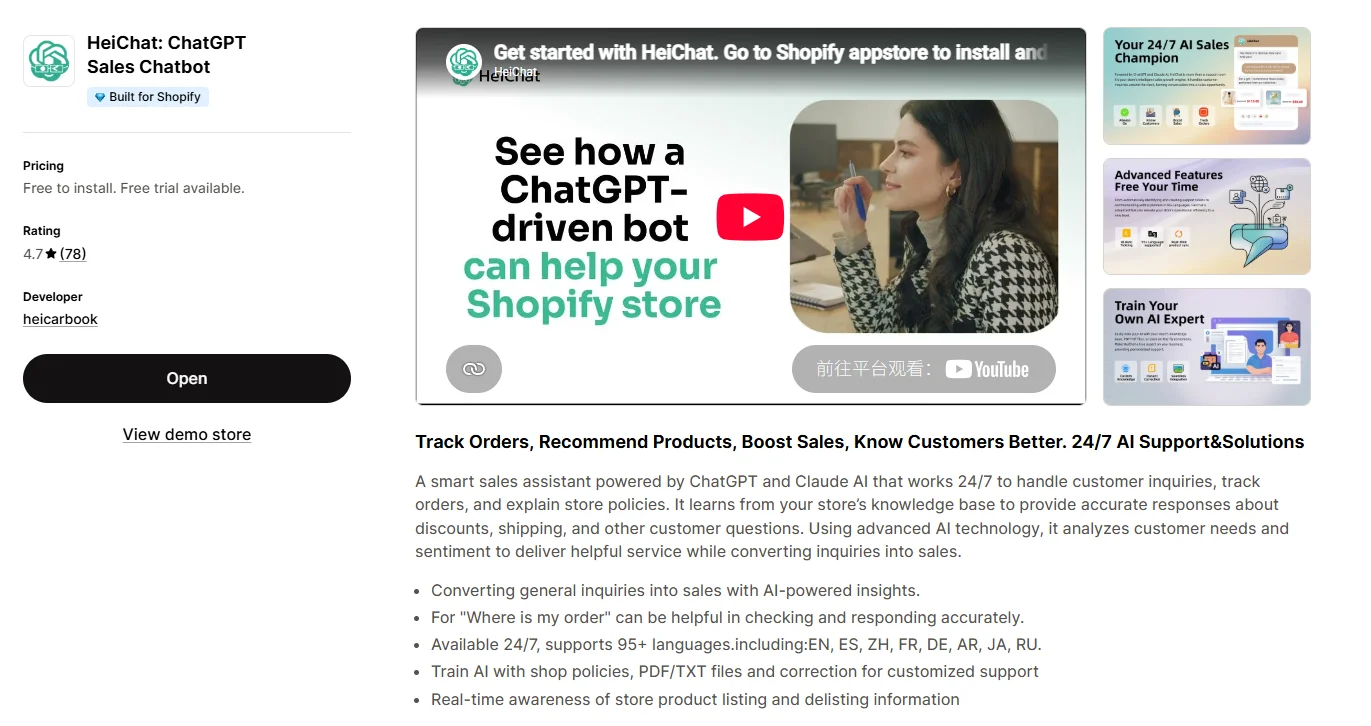
HeiChat is an AI customer service and sales chatbot built for Shopify merchants. The configuration above targets common problems such as vague answers, outdated knowledge, promises beyond its authority, and delayed human handoff, helping the AI support stay closer to the store's actual business rules.
If you'd like to see how it performs in practice, you can install and try it from the Shopify App Store. For a longer evaluation period or further support, contact [email protected].
Related Reading
Source Notice
This article is published by merchmindai.net. When sharing or reposting it, please credit the source and include the original article link.
Original article:https://merchmindai.net/blog/en/post/shopify-ai-customer-service-answer-quality-fix